
Native macOS utility by Apex Strategies
ScreenRivet
Capture. Record. Document.
Fast screenshots, complete Mac screen recording, and automatic step-by-step guides—without subscriptions, accounts, or cloud uploads.
Three jobs. One native app.
From first capture to finished documentation.
ScreenRivet keeps the everyday tools close, the workflow clear, and the files on your Mac.
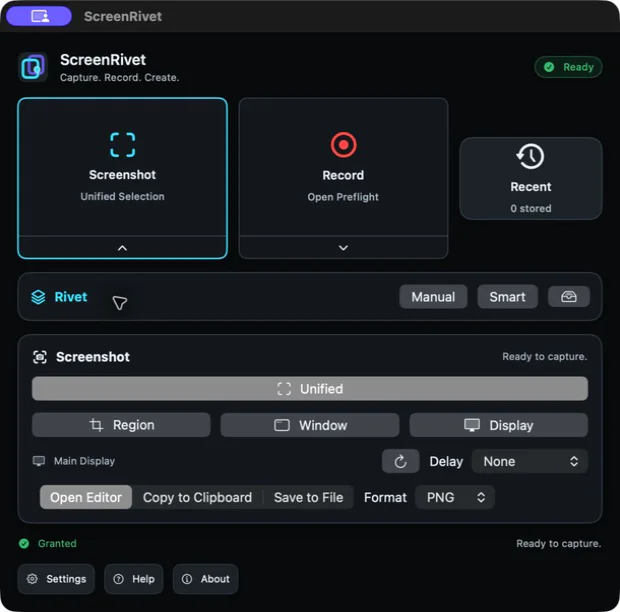
Fast screenshots
Select naturally. Decide afterward.
Capture a window with one click, drag any custom region, or select a display—all from one unified screenshot workflow.
- Window hover highlighting
- Region drag and display capture
- Contextual review toolbar
- Annotate, copy, or save
- Instant default actions
- Configurable shortcuts
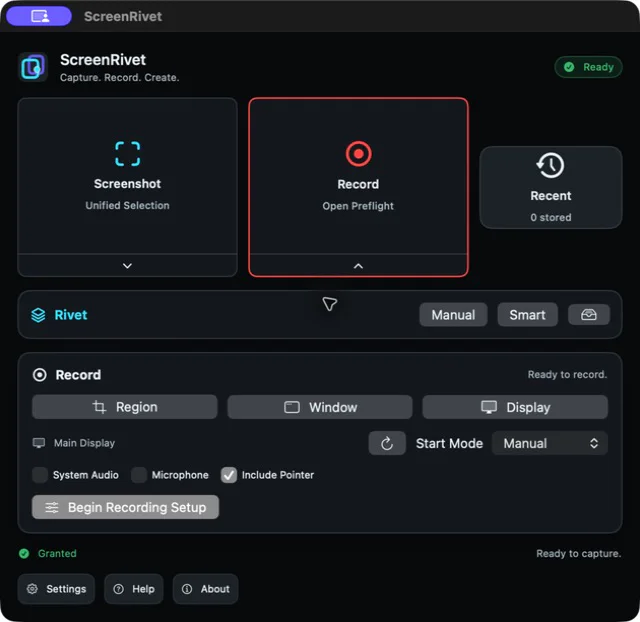
Complete screen recording
Capture the picture and the sound.
Record a display, window, or region with System Audio, Microphone, or both.
- System Audio and Microphone
- Mixed audio with gain and mute
- Input testing and live meters
- Display, window, or region scope
- Optional pointer capture
- Local MOV output
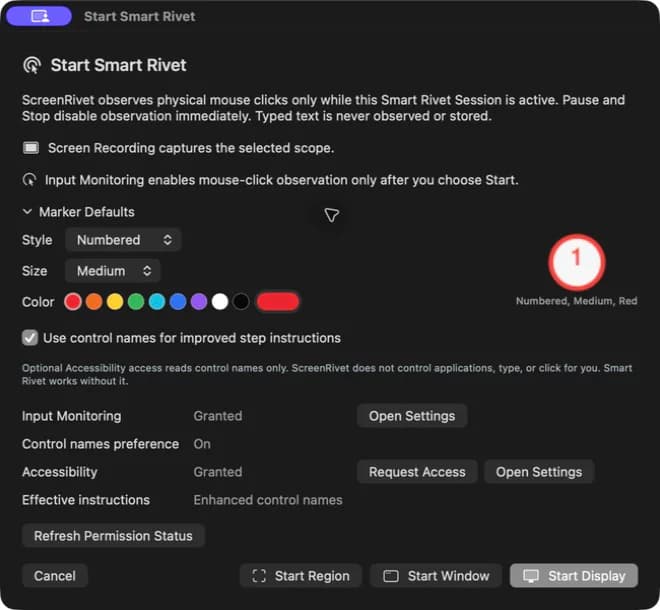
Rivet guides
Perform the process once. Keep the guide.
Manual Rivet gives you deliberate step control. Smart Rivet turns physical mouse clicks into editable, ordered workflow steps.
- Manual and Smart Rivet Sessions
- Automatic pre-click screenshots
- Numbered markers and annotations
- Editable instructions and sections
- Guide Preview
- Six local export formats
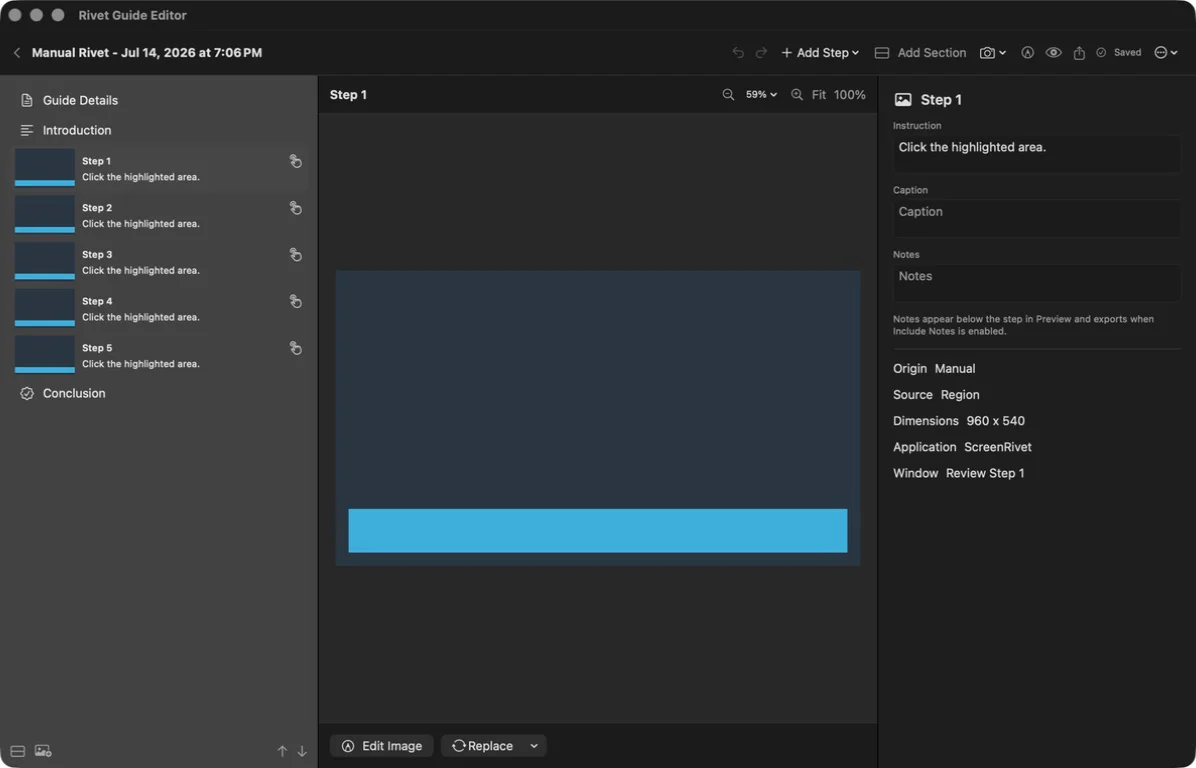
Guide editor
Shape every step.
Reorder, rewrite, annotate, add sections, refine markers, and preview the complete guide before export.
Local guide exports
Six ways to take the work with you.
Standalone HTML exports include an index.html file plus a local image-assets folder. Keep them together and the guide works locally without a web server or internet connection.
A polished, portable guide
Markdown
Text and local image assets
Standalone HTML
Local index and assets folder
Long PNG
One vertical guide image
Numbered images
A sequenced image package
Clipboard
Ready to paste where you work
Private by design
Your work stays on your Mac.
Screen Recording is required for captures. Microphone is used only when selected. Input Monitoring is requested only when Smart Rivet is explicitly started. Pause and Stop disable mouse-click observation immediately.
Read the ScreenRivet privacy policy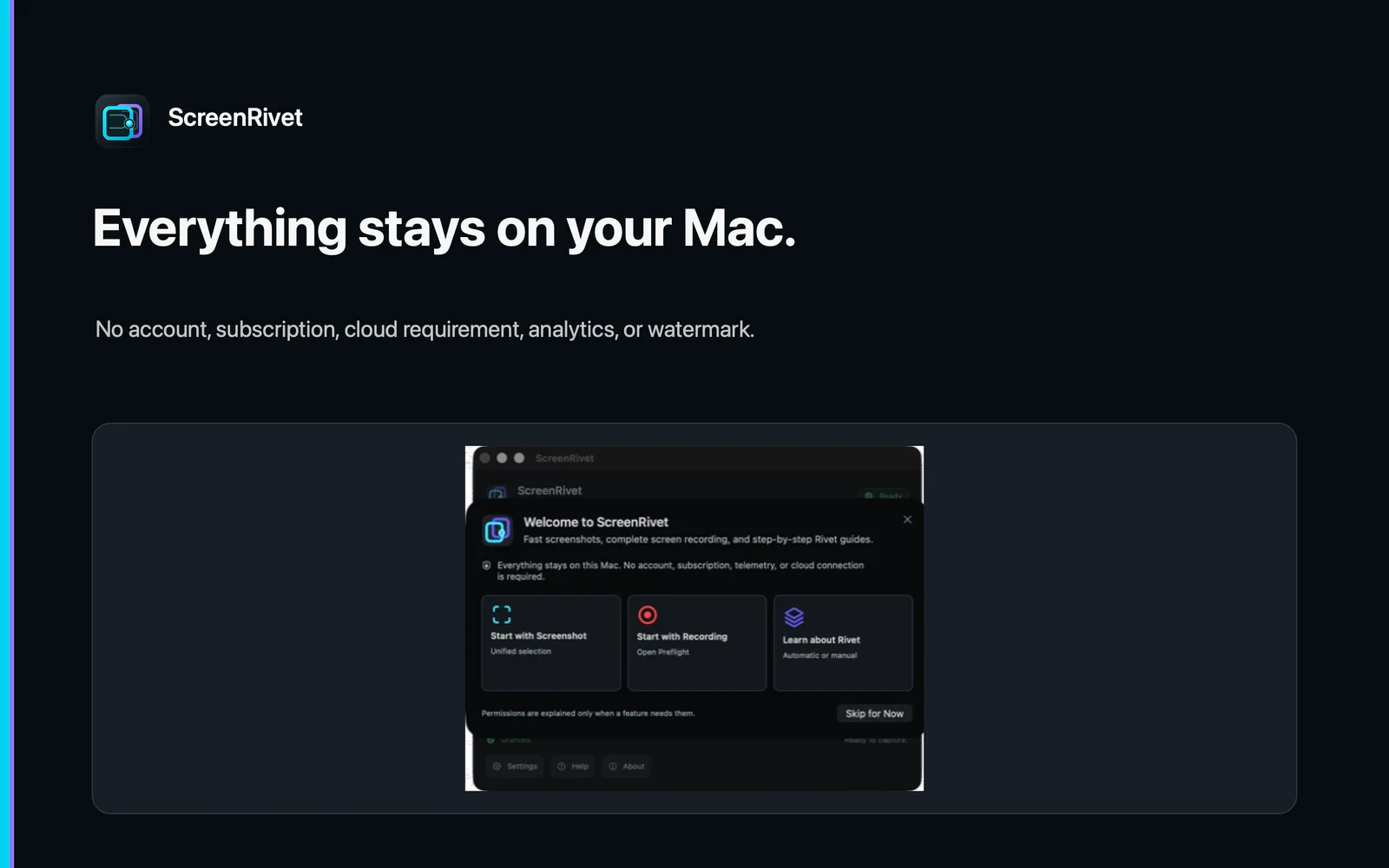
Simple workflows
A clear path for every task.
Screenshot
- 01Select
- 02Review
- 03Copy, Save, or Annotate
Recording
- 01Choose Scope
- 02Test Audio
- 03Record
- 04Stop
Smart Rivet
- 01Choose Scope
- 02Perform Workflow
- 03Stop
- 04Edit Guide
- 05Export
Straightforward value
Useful software without the recurring relationship.
| Area | ScreenRivet |
|---|---|
| Purchase | $9.99 one-time purchase |
| Subscription | No subscription |
| Account | No account |
| Screenshots | Local screenshots |
| System Audio | Included for recording |
| Microphone | Included for recording when selected |
| Automatic guides | Smart Rivet step guides |
| Manual guides | Manual Rivet Sessions |
| Guide exports | Six export options |
| Mac support | Apple silicon and Intel |
Frequently asked questions
The practical details.
Does ScreenRivet require an account?
No.
Does ScreenRivet upload my screenshots or guides?
No. ScreenRivet has no automatic upload or cloud service.
Can ScreenRivet record Mac system audio?
Yes. It can record System Audio, Microphone, or both.
Does Smart Rivet record what I type?
No. Smart Rivet observes physical mouse clicks only while an active Smart Rivet Session is running. It does not observe or store typed text.
Why does Smart Rivet request Input Monitoring?
It uses Input Monitoring to observe mouse clicks during an active Smart Rivet Session.
Is Accessibility required?
No. It is optional and used only to improve instruction names by reading control labels. It is read-only and does not control other applications.
What can Rivet Guides export?
PDF, Markdown, standalone HTML, long PNG, numbered images, and clipboard formats.
Is ScreenRivet a subscription?
No. The planned launch price is $9.99 as a one-time purchase.
Which Macs are supported?
Intel and Apple silicon Macs running macOS 14 or later.
Need a little more detail?
The support guide covers setup, permissions, exports, and local storage.